MetaTrader User Guide | How to Use MT4 & MT5
BY Panagiotis Philippou
|March 18, 2026MetaTrader 4 (MT4) and MetaTrader 5 (MT5) are the world's most popular trading platforms, trusted by millions of traders to access global markets including forex, commodities, and indices.
Both platforms offer a comprehensive suite of tools within a single interface—allowing you to analyze price movements, execute trades, and manage your positions with precision.
Whether you're just starting out or looking to sharpen your skills, this Metatrader user guide will walk you through the essentials: opening charts, placing your first trade, and protecting your capital with stop-loss and take-profit orders.
Why Choose MetaTrader for Trading?
Before diving into the technical aspects, it's worth understanding why MT4 and MT5 have become the preferred choice for traders globally:
- User-Friendly Interface: Despite their powerful capabilities, both platforms feature intuitive layouts that beginners can navigate easily
- Advanced Charting Tools: Access multiple timeframes, chart types, and over 80 built-in technical indicators
- Automated Trading: Support for Expert Advisors (EAs) allows for algorithmic and automated trading strategies
- Custom Indicators: Create or download thousands of custom indicators to enhance your analysis
- Mobile Trading: Trade on-the-go with dedicated iOS and Android applications
- Multi-Language Support: Available in dozens of languages for traders worldwide
- Low System Requirements: Runs efficiently on most computers without requiring high-end hardware
This MetaTrader user guide will help you take full advantage of these features and more.
Downloading and Installing MetaTrader
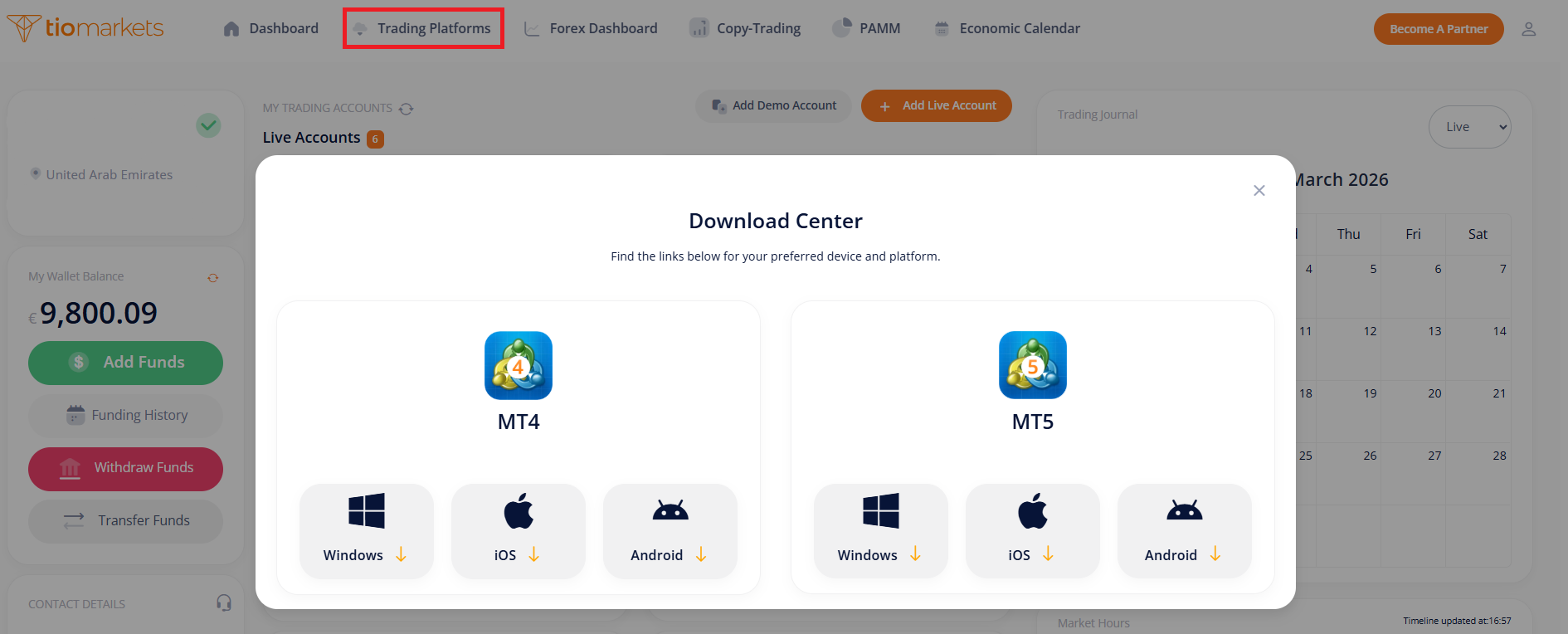
To get started with this MetaTrade user guide, you'll need to download and install either the MetaTrader 4 (MT4) or MetaTrader 5 (MT5) trading platform.
Follow these simple steps:
- Download the Platform: Get the MT4 or MT5 installation file directly from your Secure Client Portal.
- Run the Installer: Locate and open the downloaded installation executable file.
- Complete Installation: Follow the on-screen instructions to complete the setup process.
- Launch the Platform: Once the installation is finished, launch the MetaTrader application.
- Log In: Use the trading account credentials you received via email to log into the platform.
After logging in, you will be successfully connected to your trading server and will immediately begin receiving live market price data.
Understanding the MetaTrader Interface
When you open MetaTrader 4 or MetaTrader 5 for the first time, you'll see several panels and windows that work together to help you monitor markets and manage trades effectively.
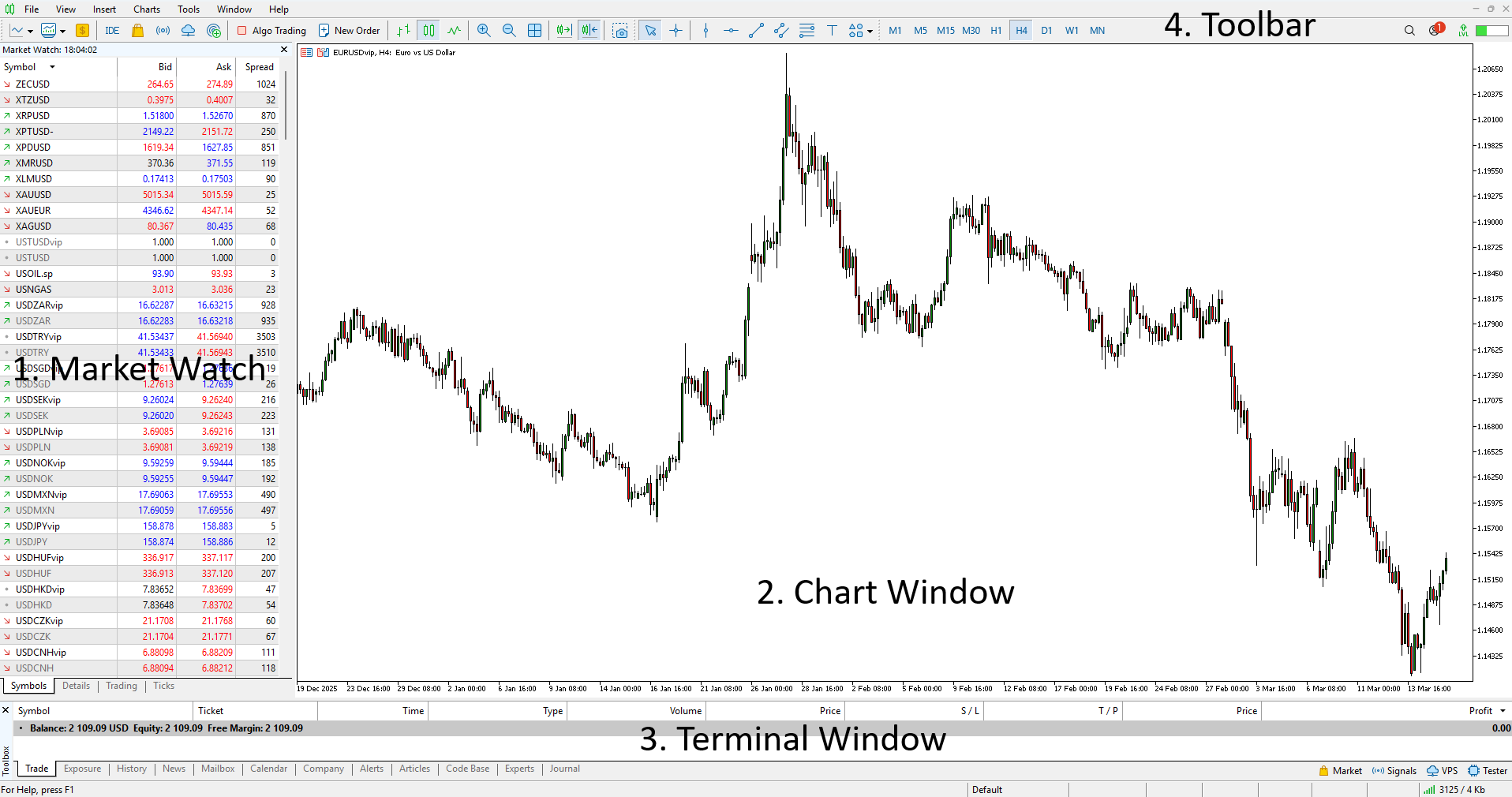
The most important sections of the MetaTrader interface include:
Market Watch
The Market Watch panel is typically located on the left side of the platform. It displays the complete list of available trading instruments along with their current bid and ask prices. You can customize this list by right-clicking and selecting "Show All" to view all instruments or hiding those you don't trade. The spread (difference between bid and ask) is also visible here, helping you assess trading costs at a glance.
Chart Window
The Chart Window occupies the central area of the platform and shows price movements for the selected trading instrument. This is where you'll spend most of your time analysing markets. You can open multiple charts simultaneously, arrange them in various layouts, and customize colours, timeframes, and chart types (candlestick, bar, or line charts) according to your preferences.
Navigator Window
Located below the Market Watch panel, the Navigator window provides quick access to your trading accounts, indicators, Expert Advisors, and scripts. You can drag and drop indicators directly from here onto your charts.
Terminal Window
The Terminal window appears at the bottom of the screen and is essential for trade management. It displays your open trades (positions), pending orders, account balance, equity, margin information, trading history, and system notifications. This panel has multiple tabs including Trade, Account History, Alerts, and Journal.
Toolbar
The Toolbar runs along the top of the platform and contains icons for quick access to key functions, such as opening a new order, changing chart types, switching timeframes, adding indicators, and accessing various analytical tools. You can customize the toolbar to show only the functions you use most frequently.
Understanding these panels and their functions will help you navigate the platform more efficiently and execute your trading strategy with confidence.
Opening a Chart
Charts are the foundation of technical analysis, allowing traders to visualize and analyze price movements before placing a trade. Learning to open and customize charts is an essential skill.
To open a chart in MT4 or MT5:
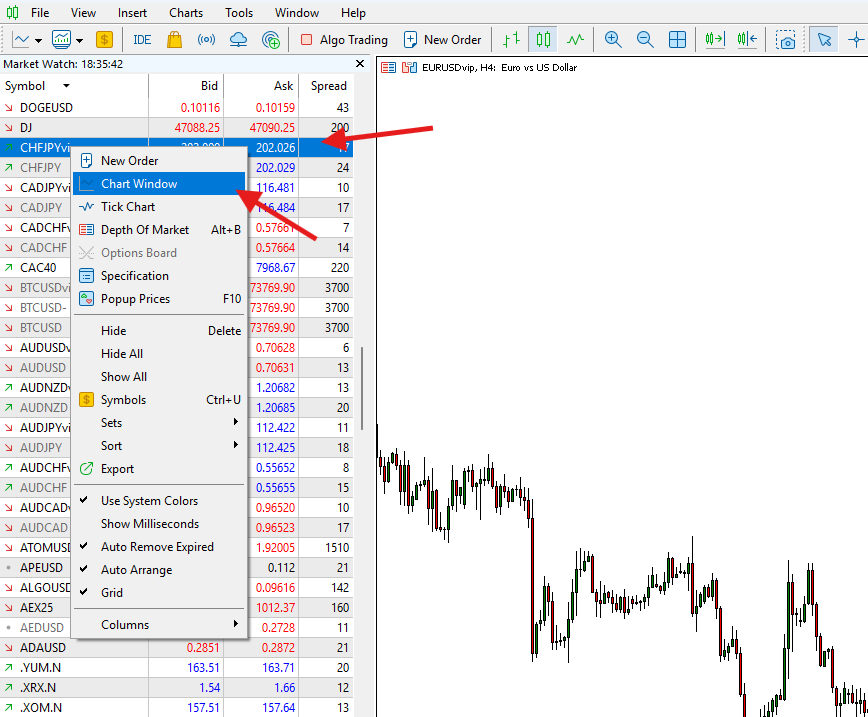
- Go to the Market Watch panel on the left side of your screen
- Right-click on the trading instrument you want to analyze
- Select Chart Window from the context menu
The chart will appear in the main workspace where you can apply indicators, draw trendlines, and analyze price movements across different timeframes.
Customizing Your Charts
Once you've opened a chart, you can customize it to suit your trading style:
- Change Timeframes: Use the toolbar or right-click menu to switch between timeframes (M1, M5, M15, M30, H1, H4, D1, W1, MN)
- Chart Type: Toggle between candlestick, bar, and line charts
- Zoom: Use the zoom buttons or scroll wheel to adjust the view
- Add Indicators: Right-click on the chart and select "Indicators" or drag from the Navigator panel
- Draw Tools: Access trendlines, Fibonacci retracements, and other drawing tools from the toolbar
- Templates: Save your preferred chart setup as a template for quick application to other instruments
Pro Tip: Create a chart template with your preferred indicators and settings, then apply it to all instruments for consistent analysis.
How to Place a Trade in MetaTrader
Placing a trade in MT4 and MT5 is straightforward once you understand the order window.
Follow these steps to place your first trade:
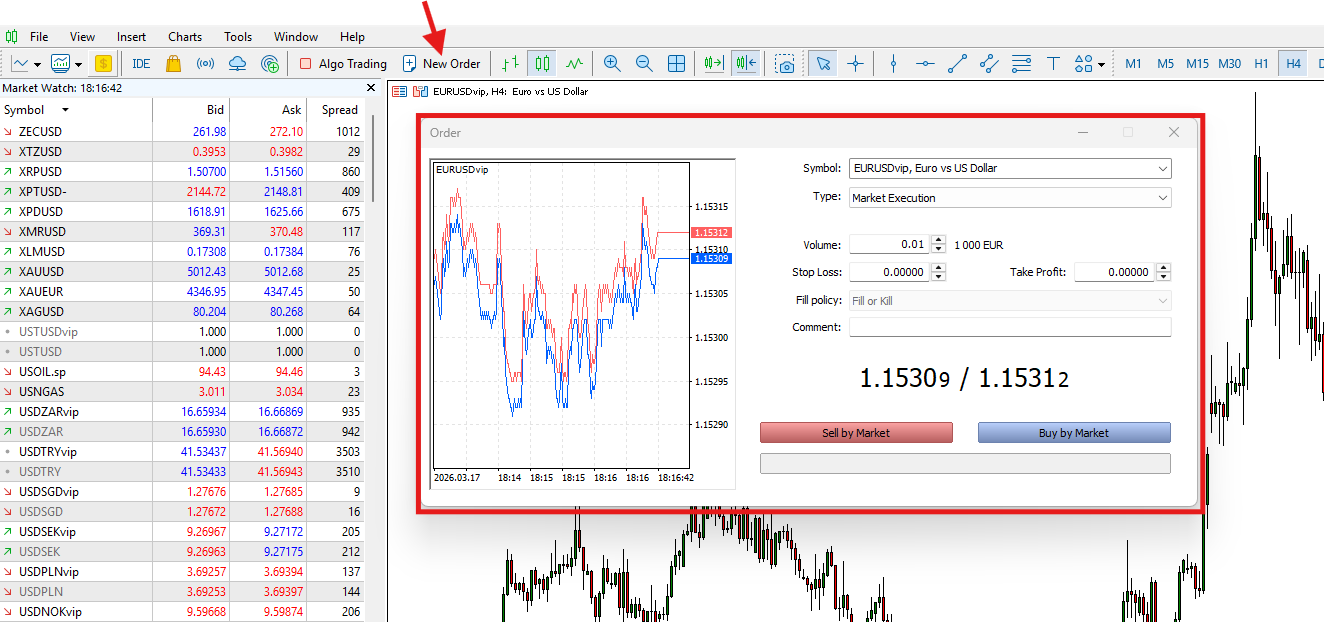
- Click the New Order button in the toolbar, or press F9 on your keyboard, or double-click on an instrument in the Market Watch panel.
- Select the trading instrument you want to trade from the Symbol dropdown menu (if not already selected).
- Enter the trade volume (lot size of your trade). Standard lots are 100,000 units, mini lots are 10,000 units, and micro lots are 1,000 units. Beginners should start with smaller lot sizes to manage risk.
- Set Stop Loss and Take Profit levels (optional but highly recommended—more on this below).
- Choose whether you want to Buy or Sell:
- A Buy order (also called "going long") is placed when you expect the price to rise. You profit when the price increases.
- A Sell order (also called "going short") is placed when you expect the price to fall. You profit when the price decreases.
- Confirm the trade by clicking the appropriate button.
Once confirmed, the trade will appear in the Terminal window under the "Trade" tab, where you can monitor its progress in real-time.
Understanding Order Types
This MetaTrader user guide wouldn't be complete without explaining the different order types available:
- Market Order: Executes immediately at the current market price
- Pending Order: Executes when the price reaches a specified level
- Buy Limit: Buy at a price lower than current market price
- Sell Limit: Sell at a price higher than current market price
- Buy Stop: Buy at a price higher than current market price
- Sell Stop: Sell at a price lower than current market price
MT5 also offers additional order types including Buy Stop Limit and Sell Stop Limit for more advanced strategies.
Setting Stop Loss and Take Profit
Stop-loss and take-profit orders are essential risk management tools that every trader should understand and use consistently. They help protect your capital and lock in profits without requiring constant market monitoring.
Stop Loss
A stop-loss order automatically closes your trade if the market moves against your position by a predetermined amount, helping limit potential losses. This is your safety net—it defines the maximum amount you're willing to lose on any single trade.
Example: If you buy EUR/USD at 1.1000 and set a stop loss at 1.0950, your position will automatically close if the price drops to 1.0950, limiting your loss to 50 pips.
Take Profit
A take-profit order automatically closes your trade once the price reaches a specified profit target. This ensures you capture gains when your target is hit, even if you're away from your computer.
Example: Using the same EUR/USD trade, if you set a take profit at 1.1100, your position will automatically close when the price reaches that level, securing your 100-pip profit.
How to Set These Levels in MetaTrader
As outlined in this MetaTrader user guide, here's how to set stop-loss and take-profit levels:
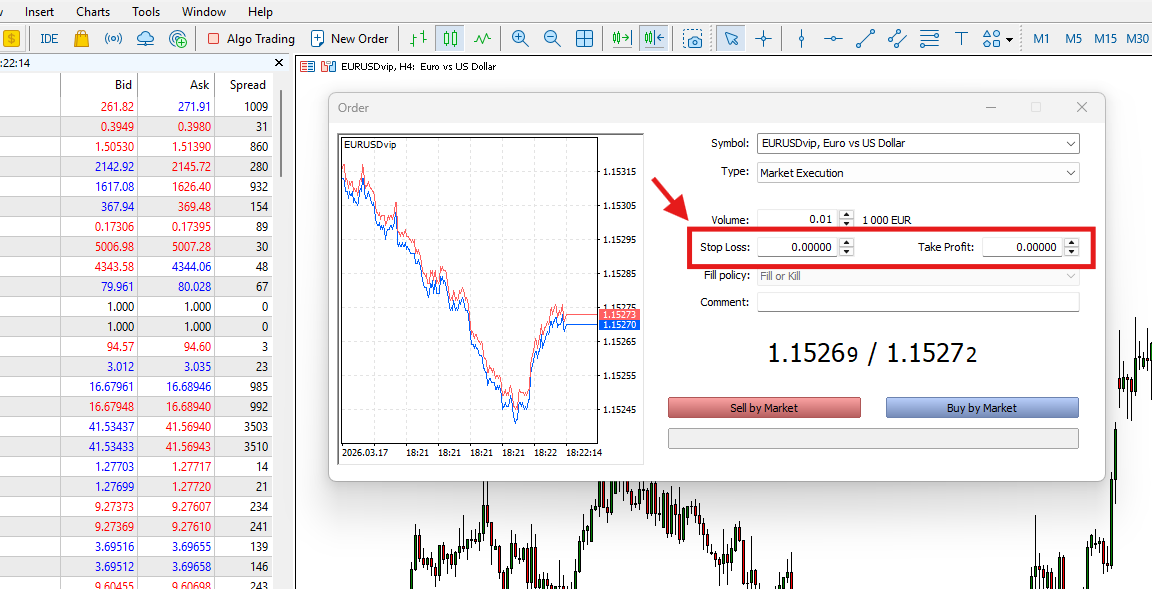
- Open the New Order window by clicking the New Order button or pressing F9
- Enter your stop-loss level in the designated field. You can input either a specific price or the number of points/pips from your entry
- Enter your take-profit level in the designated field using the same method
- Place the trade by clicking Buy or Sell
Using these tools consistently helps traders manage positions professionally and control risk effectively. Many successful traders recommend maintaining a minimum risk-to-reward ratio of 1:2, meaning your potential profit should be at least twice your potential loss.
Modifying a Trade
Market conditions change, and sometimes you'll need to adjust your stop-loss or take-profit levels after opening a position. MetaTrader makes it easy to modify open trades without closing them.
To modify a trade in MT4 and MT5:
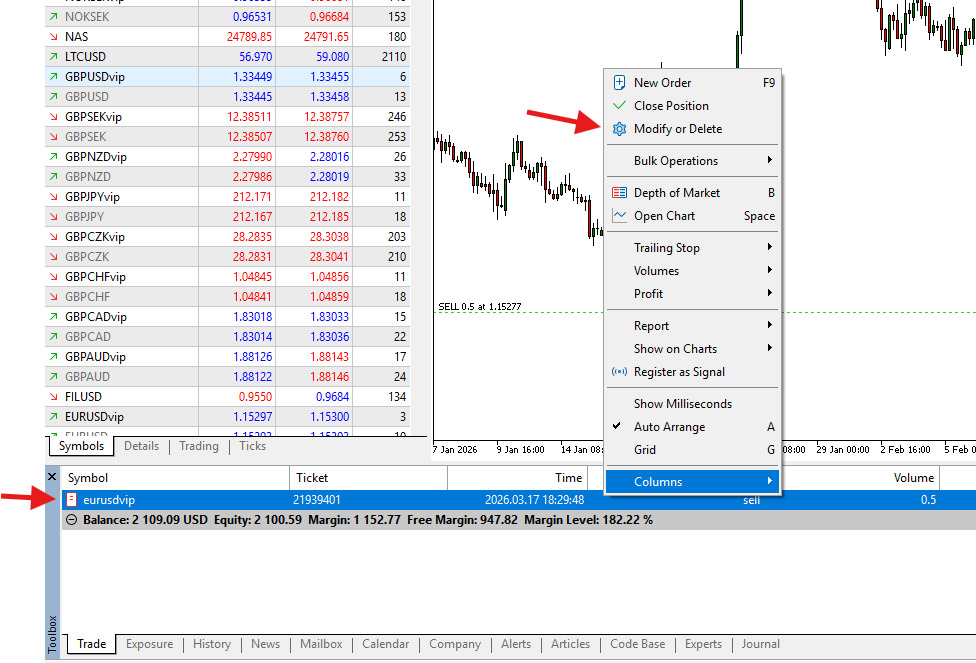
- Open the Terminal window at the bottom of your screen
- Right-click on the open position you wish to modify
- Select "Modify or Delete Order" from the pop-up menu that appears
- Adjust the stop-loss or take-profit levels as needed
- Click "Modify" to confirm your changes
Alternatively, you can modify orders directly on the chart by clicking and dragging the stop-loss or take-profit lines to new levels. This visual method makes it easy to adjust levels based on technical analysis.
Important: While modifying stop-losses to reduce risk is a sound practice, avoid the temptation to move your stop-loss further away when a trade moves against you. This behavior can lead to larger losses than originally planned.
Closing a Trade
Closing a trade allows you to exit the market and realize the result of your position—whether it's a profit or a loss. While stop-loss and take-profit orders can close trades automatically, you may sometimes want to close a position manually.
To close a trade in MetaTrader:
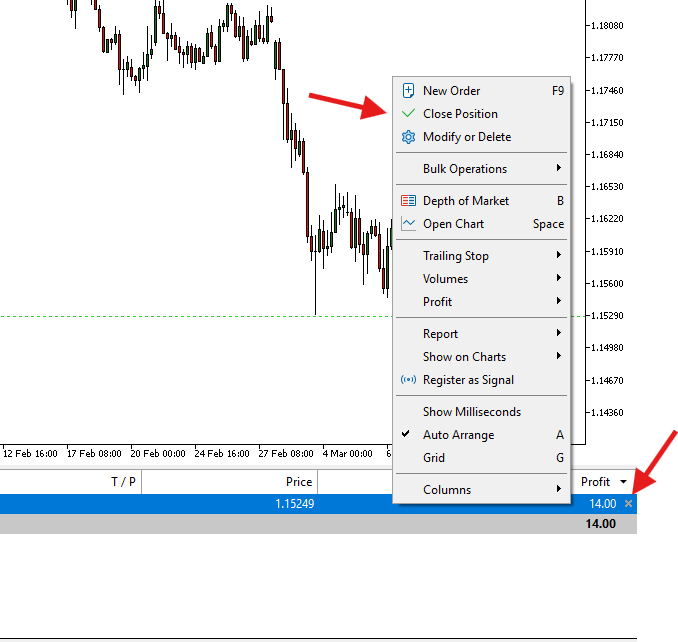
- Go to the Terminal window at the bottom of your platform
- Locate and select the open position you wish to close
- Click the "X" button to the far right of the position, or right-click and select "Close Position"
- Confirm the closure if prompted
The trade will then move to your Account History tab, where you can review all your closed positions and analyze your trading performance over time.
Partial Closes
Both MT4 and MT5 allow you to partially close positions. This is useful when you want to lock in some profits while letting the remainder of your position run. To do this, right-click on the position, select "Modify or Delete Order," then change the volume to the amount you wish to close before confirming.
Basic Risk Management
Risk management is an essential part of successful trading and should be the foundation of any trading strategy. Even the best market analysis is meaningless without proper risk controls in place.
Here are some fundamental risk management principles every trader should follow:
Use Stop-Loss Orders on Every Trade
Never enter a trade without a predetermined exit point. Stop-loss orders protect you from catastrophic losses and remove emotion from the equation when markets move against you.
Follow the 1-2% Rule
Many professional traders risk no more than 1-2% of their total account balance on any single trade. This means if you have a £10,000 account, you shouldn't risk more than £100-£200 per trade. This approach ensures you can survive a string of losing trades without devastating your account.
Avoid Excessive Leverage
While leverage can amplify profits, it equally amplifies losses. Use leverage conservatively, especially when starting out. Higher leverage doesn't mean higher profits—it means higher risk.
Manage Position Sizes Appropriately
Calculate your position size based on your stop-loss distance and the amount you're willing to risk, not on how much you want to make. Position sizing is one of the most important aspects of risk management.
Trade Only With Capital You Can Afford to Lose
Never trade with money earmarked for essential expenses like rent, bills, or savings. Trading capital should be discretionary funds that won't impact your lifestyle if lost entirely.
Avoid Emotional Trading Decisions
Create a trading plan and stick to it. Don't let fear cause you to exit profitable trades too early, and don't let greed convince you to hold losing positions hoping they'll turn around. Emotional decisions are rarely good decisions in trading.
Keep a Trading Journal
Document your trades, including your reasoning, entry and exit points, and outcomes. Reviewing your journal regularly helps identify patterns in your trading behaviour and areas for improvement.
Trading in the financial markets involves significant risk, and responsible risk management helps you approach markets more professionally while protecting your capital over the long term.
MetaTrader Quick Start Checklist
Follow this step-by-step checklist to place your first trade using MetaTrader 4 or MetaTrader 5:
- Register your trading profile with a regulated broker
- Download and install the MetaTrader platform from your client portal
- Log in using your trading account credentials (account number, password, and server)
- Familiarize yourself with the platform interface (Market Watch, Charts, Terminal)
- Open a chart from the Market Watch panel by right-clicking your chosen instrument
- Analyze the market using technical indicators and chart patterns
- Click New Order (or press F9) to open the trade window
- Select your desired trade volume and direction (Buy or Sell)
- Set your Stop Loss and Take Profit levels based on your analysis and risk tolerance
- Review all details and confirm the trade
- Monitor your position in the Terminal window
Your position will now appear in the Terminal window where you can monitor its progress, modify stop-loss and take-profit levels, or close it when ready.
Next Steps
Now that you understand how to use the MetaTrader trading platform (MT4 or MT5), the next step is to put your knowledge into practice.
Many successful traders begin their journey with a demo account to familiarize themselves with the platform and test their strategies without risking real capital. Once comfortable, you can transition to a live account, starting with small lot sizes while you build confidence and refine your approach.
Remember, becoming a proficient trader takes time, patience, and continuous learning. Use this MetaTrader user guide as your reference, practice consistently, and always prioritize risk management in your trading decisions.
FAQ
Risk disclaimer: CFDs are complex instruments and come with a high risk of losing money rapidly due to leverage. You should consider whether you understand how CFDs work and whether you can afford to take the high risk of losing your money. Never deposit more than you are prepared to lose. Professional client’s losses can exceed their deposit. Please see our risk warning policy and seek independent professional advice if you do not fully understand. This information is not directed or intended for distribution to or use by residents of certain countries/jurisdictions including, but not limited to, USA & Countries included in the OFAC sanction list. The Company holds the right to alter the aforementioned list of countries at its own discretion.
TIOmarkets offers an exclusively execution-only service. The views expressed are for information purposes only. None of the content provided constitutes any form of investment advice. The comments are made available purely for educational and marketing purposes and do NOT constitute advice or investment recommendation (and should not be considered as such) and do not in any way constitute an invitation to acquire any financial instrument or product. TIOmarkets and its affiliates and consultants are not liable for any damages that may be caused by individual comments or statements by TIOmarkets analysis and assumes no liability with respect to the completeness and correctness of the content presented. The investor is solely responsible for the risk of his/her investment decisions. The analyses and comments presented do not include any consideration of your personal investment objectives, financial circumstances, or needs. The content has not been prepared in accordance with any legal requirements for financial analysis and must, therefore, be viewed by the reader as marketing information. TIOmarkets prohibits duplication or publication without explicit approval.
Join us on social media



Authors BIO

Panagiotis is an online trading specialist with extensive experience in forex, indices, and commodities. He enjoys sharing his experience to help traders better understand global financial markets.